Your AI tools already talk to your code repositories, Jira, Slack, and your databases. You have MCP servers wired across your workflow, and your AI assistant can reason about almost anything you throw at it, except your security data.
That is the gap.
When a security question comes up mid workflow, whether it is a CVE check, a posture query, or an investigation into a suspicious finding, everything stalls. You leave your IDE, open the Uptycs console, run the investigation there, then try to carry that context back to where you were working. You end up doing the integration work yourself, copying results between tabs, re-asking questions you already had answers to, and manually bridging two systems that should already be connected. Every round trip costs focus and time.
That is why we built the Juno MCP server.
It brings Juno’s analysis directly into the AI tools you already use, whether that is VS Code, Claude Code, Claude Desktop, Cursor, or any MCP-compatible client. No tab switching. No re-running investigations. No copying results between windows. A security question comes up while you are working, you ask it, and Juno gives you an answer right there.
When you need to go deeper, the full investigation is one click away in the Juno UI, with every SQL query, every reasoning step, and every log source laid out in the Glass Box view you rely on. Fast answers where you work. Full evidence when you need it.
Security stops being the blind spot in your AI-assisted workflow. It becomes another domain your tools can reason about, without breaking your flow.
If you've set up an MCP server before, you can have Juno connected in under five minutes. Here's the setup:
Prerequisites
Note: This walkthrough assumes macOS/Linux.
Before you start, you'll need two things installed on your machine.
- uv package manager: Juno MCP server runs on Python 3.11+, and uv handles that for you. If you don't have uv yet, open Terminal and run:
You can find the latest version and other installation options at docs.astral.sh/uv.curl -LsSf https://astral.sh/uv/0.10.7/install.sh | sh - The Juno MCP server repo: For simplicity, this guide clones the repository into your home directory (~/) so the paths are easy to reference. You’re free to clone it wherever you prefer.
This will create a folder at ~/juno-mcp-server.cd ~git clone https://github.com/uptycslabs/juno-mcp-server.git
You'll also need an Uptycs account with Juno enabled. If you're reading this, you probably already have one.
Step 1: Get your API key from the Uptycs Console
You need an API key so the MCP server can authenticate with Juno on your behalf.
In the Uptycs console, click your name in the top right corner. A dropdown will open. Click Account Settings, then click Create to generate a new API key. Once it's created, click Download to save the JSON file to your machine.
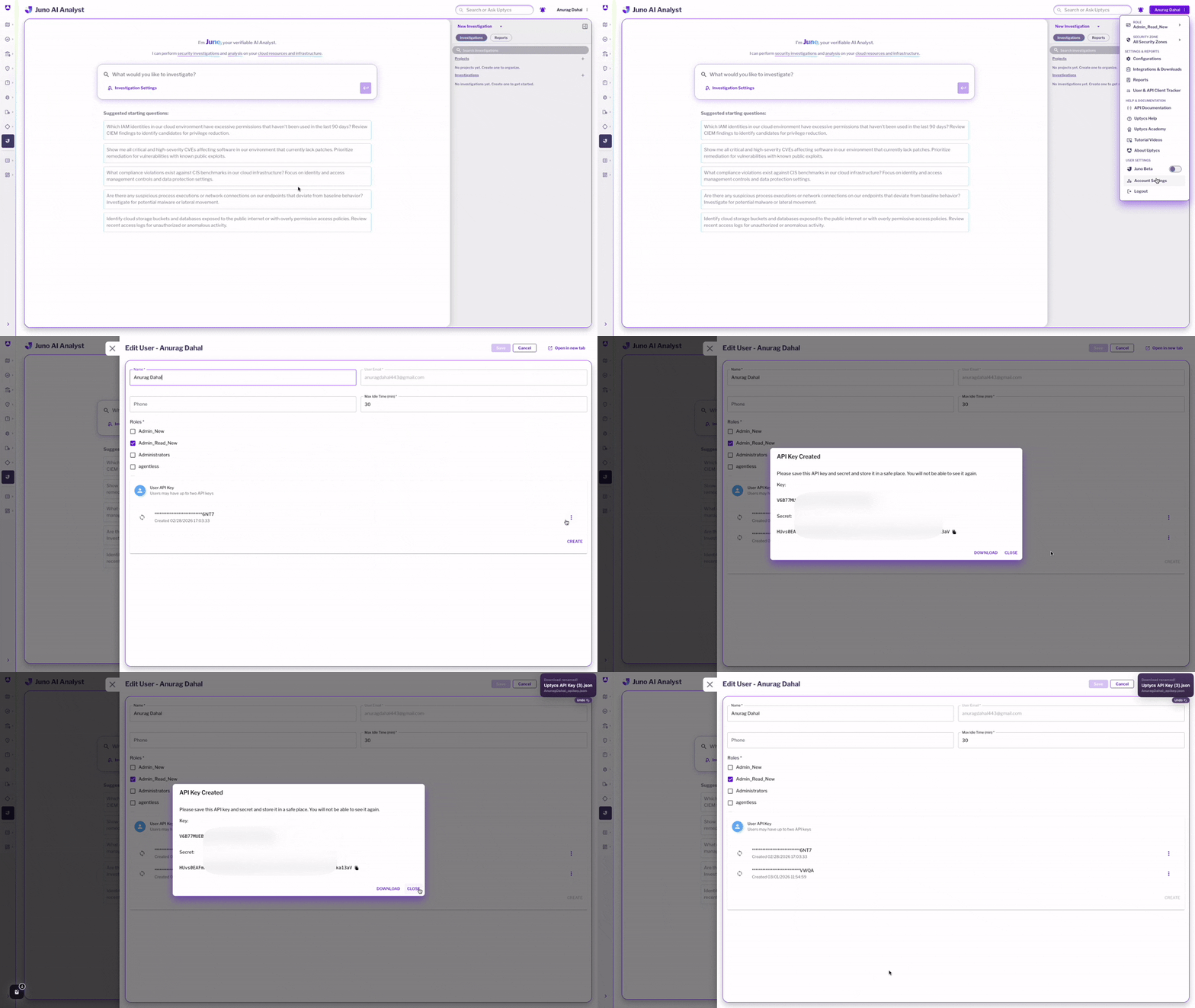
Move the downloaded file to your home directory so it's easy to reference:
mv ~/Downloads/"Uptycs API Key.json" ~/uptycs-apikey.json |
The file will look something like this:
{ "customerId": "xxxxxxxx-xxxx-xxxx-xxxx-xxxxxxxxxxxx", "key": "YOUR_API_KEY", "secret": "YOUR_API_SECRET", "domain": "your-domain", "domainSuffix": ".uptycs.io"} |
Don't share this file. It's your credentials.
Step 2: Configure your MCP client
Next, configure your AI tool to locate and run the Juno MCP server. This walkthrough uses Claude Desktop on macOS. The process is similar for other MCP-compatible clients.
Open your terminal and run:
open ~/Library/Application\ Support/Claude/claude_desktop_config.json |
This will open your Claude Desktop config file in your default text editor. If the file doesn't exist, create it first:
mkdir -p ~/Library/Application\ Support/Claudetouch ~/Library/Application\ Support/Claude/claude_desktop_config.jsonopen ~/Library/Application\ Support/Claude/claude_desktop_config.json |
If you don't have any MCP servers configured yet, replace the entire contents of the file with:
{ "mcpServers": { "juno": { "command": "uv", "args": ["--directory", "/Users/<yourname>/juno-mcp-server", "run", "juno-mcp"], "env": { "UPTYCS_API_KEY_FILE": "/Users/<yourname>/uptycs-apikey.json" } } }} |
If you already have MCP servers configured, add the "juno" block inside your existing "mcpServers" object:
{ "mcpServers": { "your-existing-server": { ... }, "juno": { "command": "uv", "args": ["--directory", "/Users/<yourname>/juno-mcp-server", "run", "juno-mcp"], "env": { "UPTYCS_API_KEY_FILE": "/Users/<yourname>/uptycs-apikey.json" } } }} |
Replace <yourname> with your actual macOS username. Not sure what it is? Run whoami in your terminal and it'll tell you.
Step 3: Restart and verify
Quit Claude Desktop completely and reopen it. Once it's back, you should see Juno's tools available in the client.
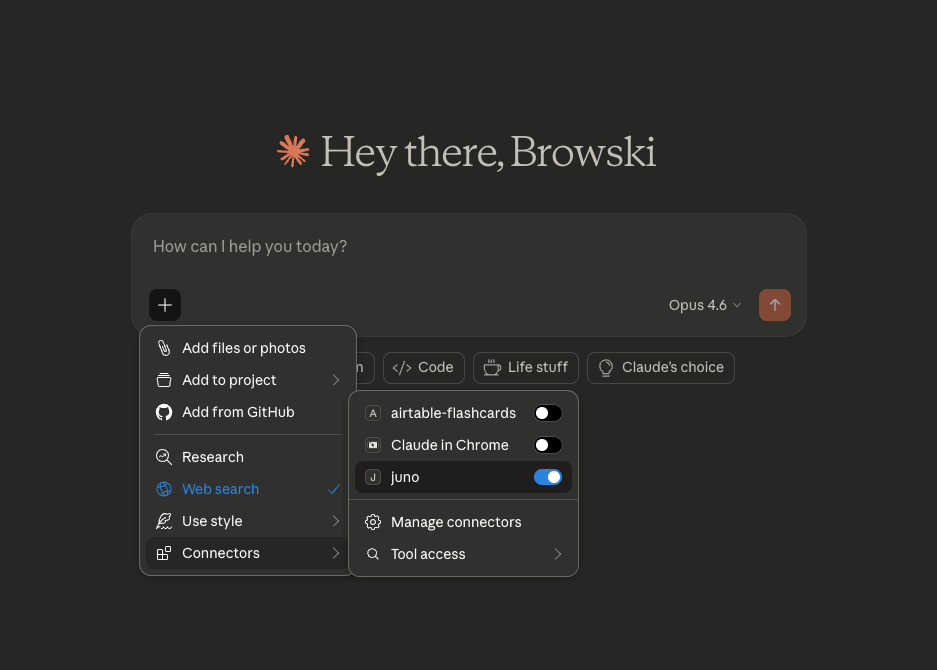
To confirm everything is working, try asking something like:
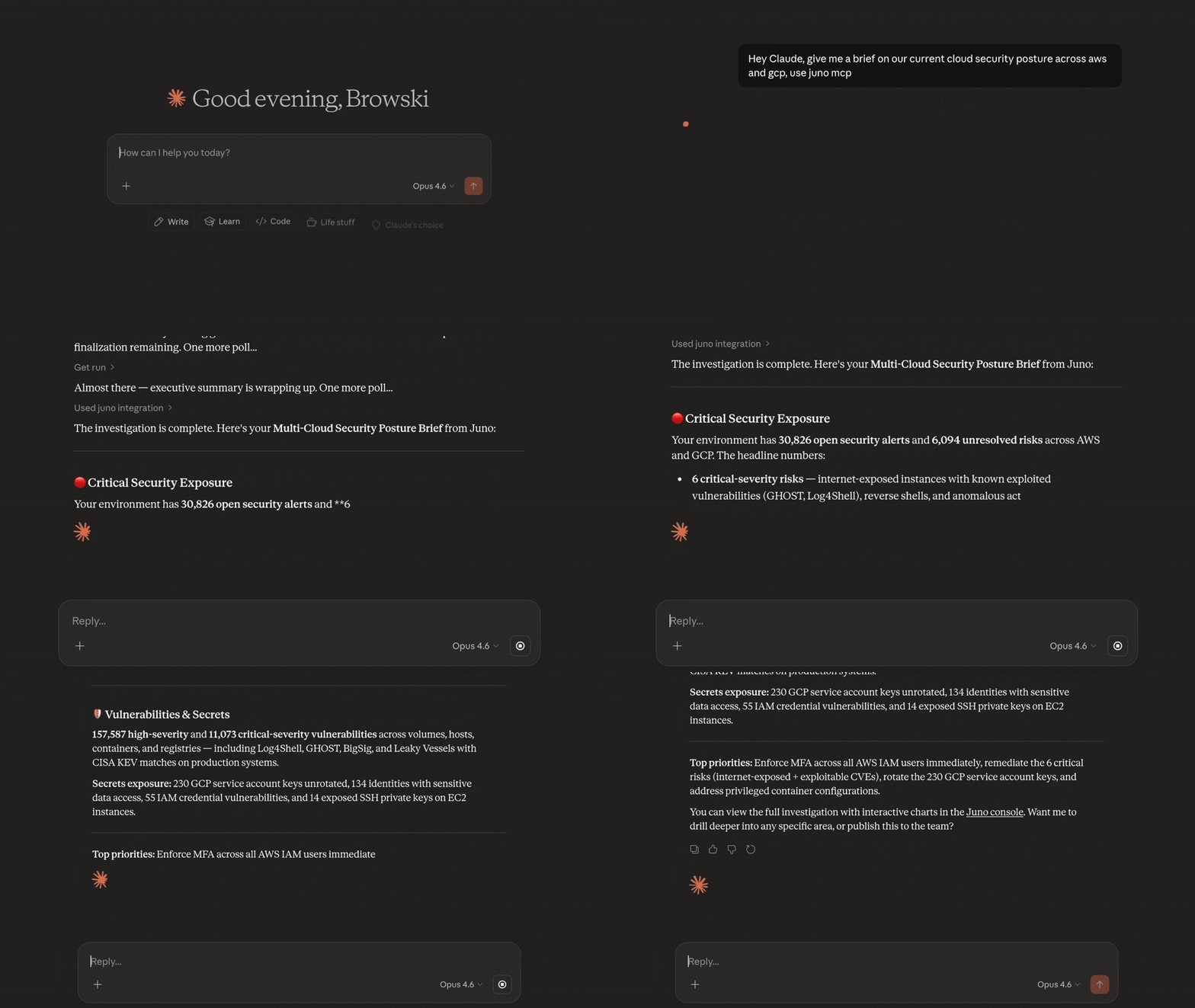
“Hey Claude, give me a brief on our current cloud security posture across AWS and GCP, use juno MCP"
Juno will create an investigation, run it against your environment, and return the findings right in your chat.